
Withdrawing/Accepting/Rejecting Transfers
This article explains how to withdraw, accept, reject a transfer, and accept and reject a recurring transfers.
Step 1:
Navigate to the Transactions Dashboard on the left-side navigation pane. The Transactions Dashboard displays all transaction records including pending transactions. Under the Transactions dashboard- select the "Pending" tab. Follow one of the following steps to either Withdraw (Step 2A), Accept (Step 2B), or Reject (Step 2C) transfers in the system.

Step 2A: Withdrawing Transfers
Withdraws allow the transferor to cancel any previous transfers of certificates in the system that have not already been accepted. To do so, select the "Pending" tab. Scroll to the right of the table and select "Withdraw". If your transfer included multiple batches of certificates to be transferred, a withdrawal of one batch will withdrawal all batches for that transfer. This will require you to return to transfer window to initiate the correct batches of certificates to transfer as a group.
Note: the pending tab will show all certificates for withdrawal or acceptance on the tab.
Note: The transferor will be notified when a transfer is withdrawn if the transferor has notifications enabled in their account.

You will be asked to verify the withdrawal, after doing so select "Withdraw". The certificates will now be present under "Active".

Step 2B: Accepting Transfers
If you receive a transfer of certificates externally from another organization or via an import they will appear under the "Pending" tab. Start by navigating to the "Pending" tab under the "Transactions" Dashboard.
Note: the pending tab will show all certificates for acceptance and withdrawal on the tab.
Note: The transferor will be notified when a transfer is accepted if the transferor has notifications enabled in their account.
Scroll to the right of the "Pending" table and select "Review".

You will then be asked to select the Active account you would like the certificates deposited into, after doing so you will select the "Review Transfer" button.

The system will then ask you to review the transfer one final time, select "Accept Transfer" and the certificates will be deposited into the specified account.

Step 2C: Rejecting Transfers
If you believe RECs were transferred to your organization in error, contact the System Administrator ([email protected]).
To reject certificates start on the "Transactions" dashboard and select the "Pending" tab.
Note: The transferor will be notified when a transfer is rejected if the transferor has notifications enabled in their account.
Scroll to the right within the "Pending" table and select "Review" for the certificate line you want to reject.
On the review screen you can choose the "Reject Transfer" button to reject the transfer.
Steps to Accept a recurring transfer:
Navigate to 'Transactions'
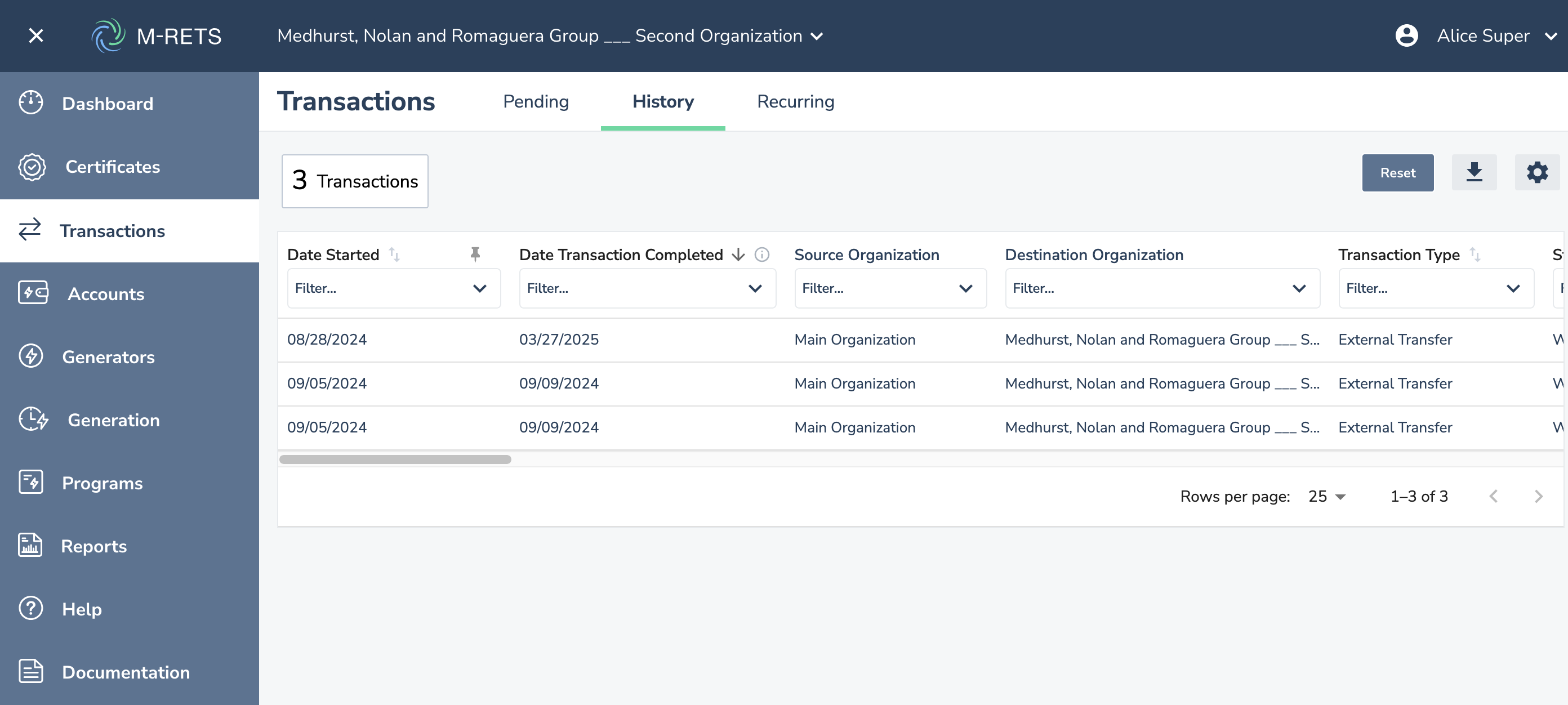
click on 'Recurring'
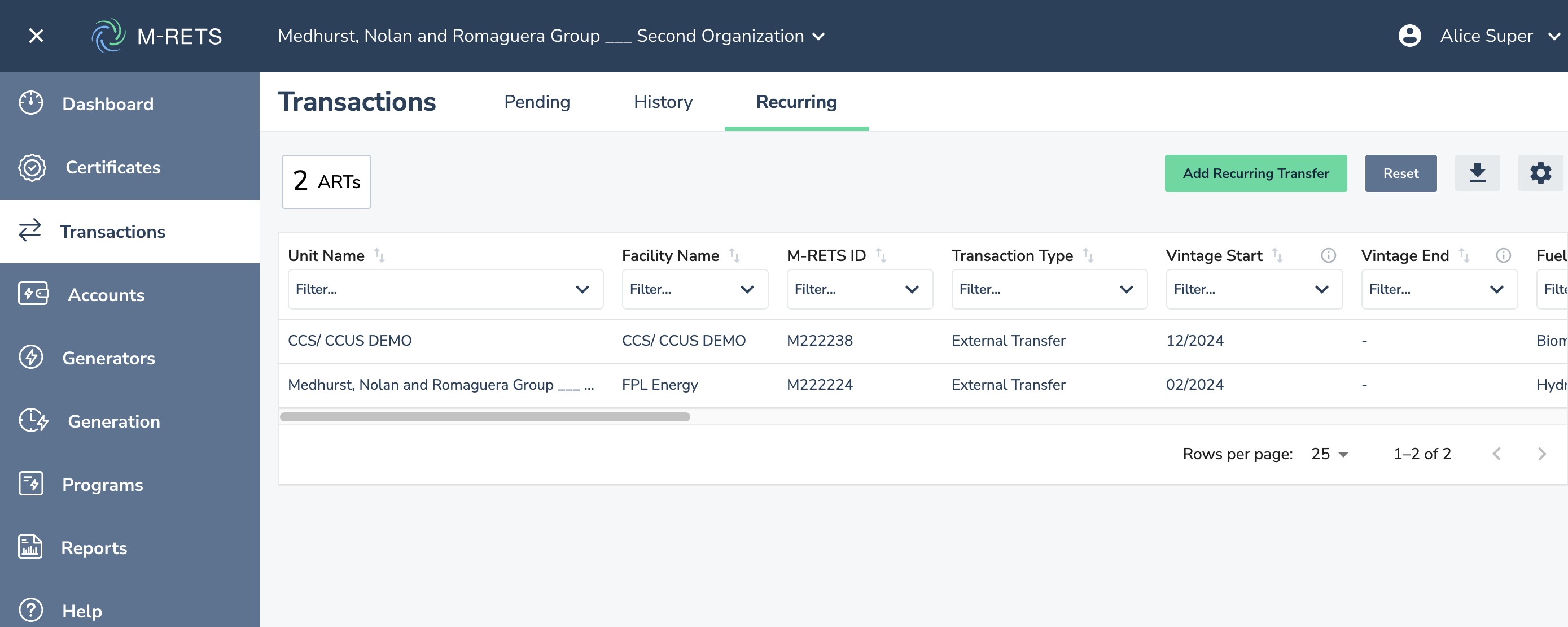
Then scroll to the far right until you see the button 'Accept/Reject'
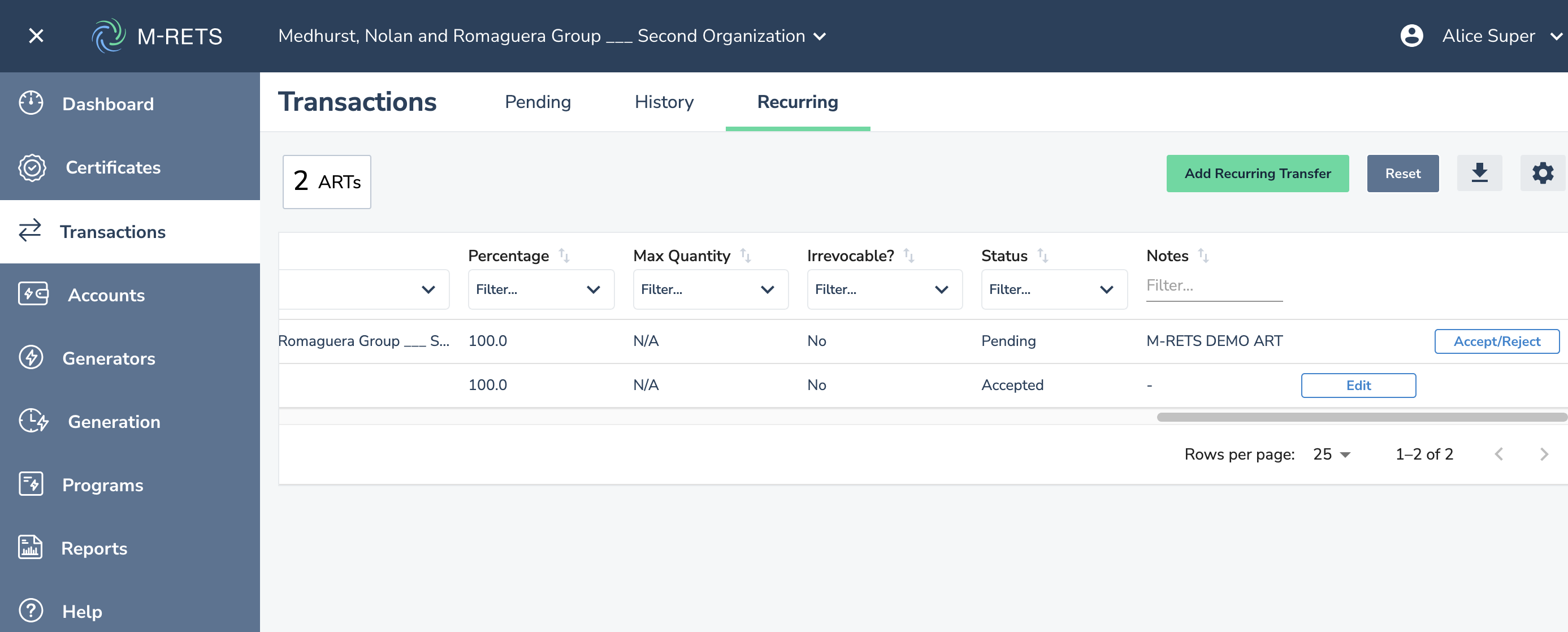
click on 'Accept/Reject' to accept the automatic recurring transfer